Showing posts with label Google-webmastercentral. Show all posts

Showing posts with label Google-webmastercentral. Show all posts

Google updates on webmaster tools

Google robots.txt generator tool:

Do you want official Google robots.txt generator tool? Google adds that new feature on Google webmaster central.

check your webmaster tools account,

Dashboard > Tools > Generate robots.txt - Here's what it looks like:

google_webmaster_tool_robot

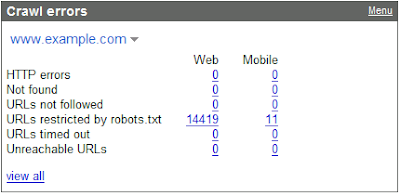
iGoogle Webmaster tools Gadgets:

Google Webmaster Tools from your own homepage. Get errors, statistics, details about your site, and more on iGoogle.

check here, Dashboard > Tools > Gadgets - Here's what it looks like:

google_webmaster_tool_gadgets

Webmaster Tools Gadgets in iGoogle

Google just released Webmaster Tools Gadgets for iGoogle

This is the process to start using these Gadgets.

  • Visit Webmaster Tools and select any site that you've validated from the dashboard.
  • Click on the Tools section.
  • Click on Gadgets sub-section.
  • Click on the big "Add an iGoogle Webmaster Tools homepage" button.
  • Click the "Add to Google" button on the following confirm page to add the new tab to iGoogle.
  • Now you're in iGoogle, where you should see your new Google Webmaster Tools tab with a number of Gadgets.

'Google plan to add more Gadgets in the future and improve their quality' that's better to do easy SEO :)

check these samples,

Google's Webmaster Tools - Diagnostic Features

Google's Webmaster Tools have been updated with new diagnostic features that alert site owners to problems Google may have extracting content from pages. In addition, they've added Video Sitemaps. They've also added Hungarian and Czech to the 20 languages already supported. Below more about these features and how best to use them.

Update On Google's Paid Links Info Pages

One Google update on one of the Google’s Paid Links Info Pages at Google Webmaster Help Center

Old: “Buying links in order to improve a site’s ranking is in violation of Google’s webmaster guidelines and can negatively impact a site’s ranking in search results.”

New: “Buying or selling links that pass PageRank is in violation of Google’s webmaster guidelines and can negatively impact a site’s ranking in search results."

Google now allows webmasters to manage SERP’s sitelinks

What is the Sitelinks?

Sitelinks are extra links that appear below some search results in Google. They serve as shortcuts to help users quickly navigate to the important pages on your site. Selecting pages to appear as sitelinks is a completely automated process. Google algorithms parse the structure and content of websites and identify pages that provide fast navigation and relevant information for the user's query. Since Google algorithms consider several factors to generate sitelinks, not all websites have them.

Now, Webmaster Tools lets you view potential sitelinks for your site and block the ones you don't want to appear in Google search results. Because sitelinks are extremely useful in helping users navigate your site, Google don't typically recommend blocking them. However, occasionally you might want to exclude a page from your sitelinks, for example: a page that has become outdated or unavailable, or a page that contains information you don't want emphasized to users. Once you block a page, it won't appear as a sitelink for 90 days unless you choose to unblock it sooner. It may take a week or so to remove a page from your sitelinks, but we are working on making this process faster.To view and manage your sitelinks, go to the Webmaster Tools Dashboard and click the site you want. In the left menu click Links, then click Sitelinks.

Stay tuned for more
SEO updates !!!

Dotcom-SEO: SEO updates and SEO News

"Google provides backlink tool for site owners" update from google


Hello friends,

Fantastic update from GOOGLE,

Google provides backlink tool for site owners

i saw the latest news at mattcutts blog detailed message at

googlewebmastercentral.blogspot.com/2007/02/discover-your-links.html

"You asked, and we listened: We've extended our support for querying links to your site to much beyond the
link: operator you might have used in the past. Now you can use webmaster tools to view a much larger sample of links to pages on your site that we found on the web. Unlike the link: operator, this data is much more comprehensive and can be classified, filtered, and downloaded. All you need to do is verify site ownership to see this information.

To make this data even more useful, we have divided the world of links into two types: external and internal. Let's understand what kind of links fall into which bucket.

What are external links?
External links to your site are the links that reside on pages that do not belong to your domain. For example, if you are viewing links for
http://www.google.com/, all the links that do not originate from pages on any subdomain of google.com would appear as external links to your site.

What are internal links?
Internal links to your site are the links that reside on pages that belong to your domain. For example, if you are viewing links for
http://www.google.com/, all the links that originate from pages on any subdomain of google.com, such as http://www.google.com/ or mobile.google.com, would appear as internal links to your site.

Viewing links to a page on your site
You can view the links to your site by selecting a verified site in your webmaster tools account and clicking on the new Links tab at the top. Once there, you will see the two options on the left: external links and internal links, with the external links view selected. You will also see a table that lists pages on your site, as shown below. The first column of the table lists pages of your site with links to them, and the second column shows the number of the external links to that page that we have available to show you. (Note that this may not be 100% of the external links to this page.)

This table also provides the total number of external links to your site that we have available to show you.When in this summary view, click the linked number and go to the detailed list of links to that page.When in the detailed view, you'll see the list of all the pages that link to specific page on your site, and the time we last crawled that link. Since you are on the External Links tab on the left, this list is the external pages that point to the page.

Finding links to a specific page on your site
To find links to a specific page on your site, you first need to find that specific page in the summary view. You can do this by navigating through the table, or if you want to find that page quickly, you can use the handy Find a page link at the top of the table. Just fill in the URL and click See details. For example, if the page you are looking for has the URL http://www.google.com/?main, you can enter “?main” in the Find a page form. This will take you directly to the detailed view of the links to http://www.google.com/?main.

Viewing internal links
To view internal links to pages on your site, click on the Internal Links tab on the left side bar in the view. This takes you to a summary table that, just like external links view, displays information about pages on your site with internal links to them.

However, this view also provides you with a way to filter the data further: to see links from any of the subdomain on the domain, or links from just the specific subdomain you are currently viewing. For example, if you are currently viewing the internal links to http://www.google.com/, you can either see links from all the subdomains, such as links from http://mobile.google.com/ and http://www.google.com, or you can see links only from other pages on http://www.google.com.

Downloading links data
There are three different ways to download links data about your site. The first: download the current view of the table you see, which lets you navigate to any summary or details table, and download the data in the current view. Second, and probably the most useful data, is the list all external links to your site. This allows you to download a list of all the links that point to your site, along with the information about the page they point to and the last time we crawled that link. Thirdly, we provide a similar download for all internal links to your site.

We do limit the amount of data you can download for each type of link (for instance, you can currently download up to one million external links). Google knows about more links than the total we show, but the overall fraction of links we show is much, much larger than the link: command currently offers. Why not visit us at Webmaster Central and explore the links for your site? "


Google Information for Webmasters

Google provide general webmaster information in many languages (from French to Russian and many languages in between), as well as specific guidelines on researching search engine optimization (SEO) companies. As always, if you see webspam in Google’s index, our spam report form is the best place to let us know.

Google will be expanding its efforts on webspam in non-English languages this year. Just as a reminder, Google’s quality guidelines have been available for several years in many languages:
Google’s German quality guidelines
Google’s French quality guidelines
Google’s Italian quality guidelines
Google’s Spanish quality guidelines
Google’s Japanese quality guidelines
Google’s Chinese quality guidelines
Google’s Korean quality guidelines
Google’s Dutch quality guidelines
Google’s Russian quality guidelines
Google’s Polish quality guidelines

* * * RAVI * * *